Private · local · no subscription

Make low-resolution videos look cleaner in 1080p or 4K

A simple Windows app for private AI video enhancement — no cloud uploads, no command line, no model hunting. Built on Real-ESRGAN with optional motion-aware blending.

Honest expectation: AI upscaling improves perceived sharpness and can soften compression blocks. It does not recreate detail that was never recorded. Old SD → 4K may look softer than 1080p on some sources.

Free preview: 720p · 5 seconds · no watermark · no key

See it first

Before / after — drag the slider

Judge output on your own footage with the free 5-second preview in the app. Replace this demo with a real clip from your compare export when ready.
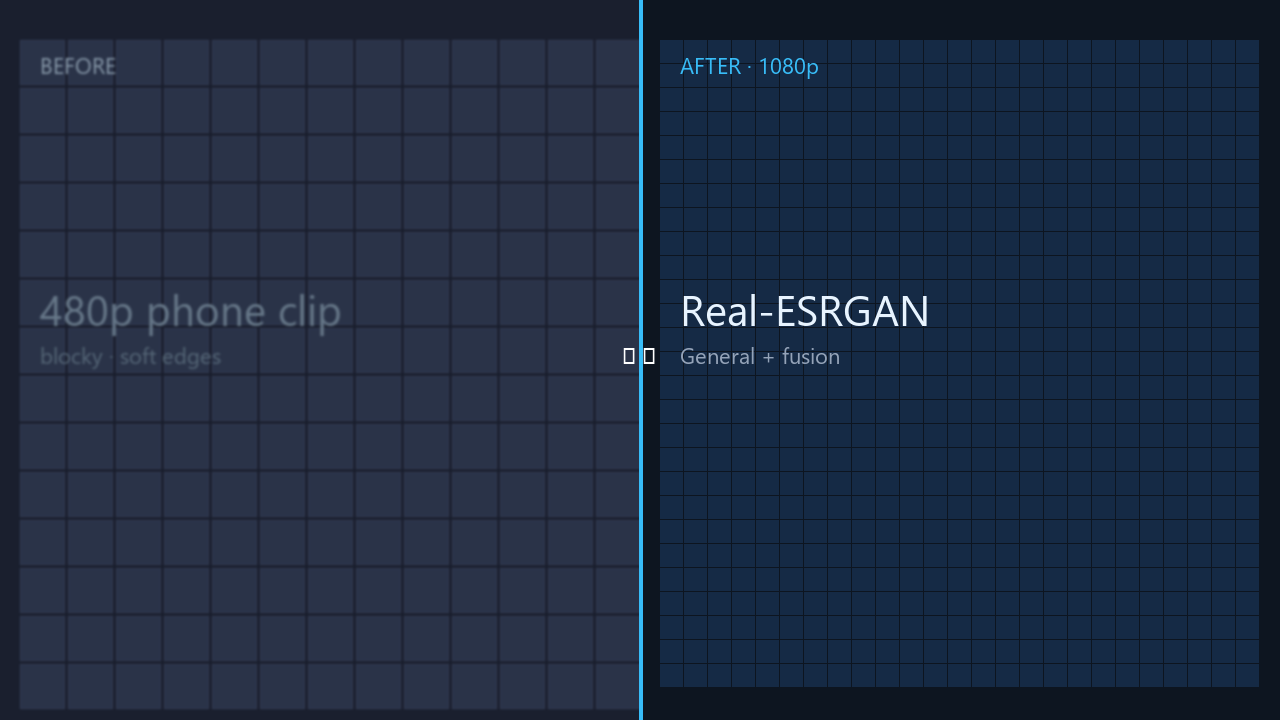
Before upscale After upscale Before After · cleaner frame

In the app: enable Create before/after preview for a side-by-side MP4. Test pans, faces, and subtitles on your clip — fusion helps some footage and can ghost on fast motion.

What you’re actually buying

Not four model files — a workflow that saves time and avoids technical setup.

No cloud, no CLI

Windows app — drop a video, pick 1080p or 4K, enhance. AI models download inside the app on first run (~400 MB once).

Smoother video, not just sharper frames

Optional motion-aware blending can reduce frame-to-frame shimmer on pans. Not magic — fast motion and cuts may still show artifacts.

Try before you pay

Free tier: 720p, 5 seconds, General profile. Pro unlocks full length, batch, and all profiles for $1+ once.

Built-in workflow features

Same ballpark price as basic upscalers — but with analysis, batch, and fusion that usually cost more.

Auto analysis

Recommended settings

Detects content type, noise, motion, faces, and text — then suggests model, resolution, fusion, and look.

Smart preview

Hard-scene samples

Picks face, motion, dark, compressed, and subtitle sections — not only the first five seconds.

Artifact guard

Scene-cut aware fusion

Fusion resets at cuts. Halo and text safeguards back off where AI would invent artifacts.

Batch

Resumeable queue

Skip finished files, continue after a failure, per-file logs.

Images

Still photos too

Enhance PNG, JPG, and WebP with the same profiles.

Example: “Recommended: General · 1080p · light denoise · adaptive fusion · Faithful.”

Free preview

  • 720p output max
  • 5 seconds per clip
  • General profile only
  • No license key · no watermark

Pro · $1+ one-time

  • 1080p, 2K, 4K targets
  • Full-length videos + batch queue
  • Four ready-to-use profiles
  • All fusion modes + compare preview
Unlock Pro

Get started (Windows app)

  1. Download from Gumroad
    Zip file + license key in your receipt email.
  2. Extract and run
    Extract the zip, then double-click LocalAIVideoEnhancer.exe. Windows 10/11, 64-bit.
  3. Paste your license key
    One key = one PC. Unlocks Pro: 1080p–4K, batch, all profiles.
  4. Drop a talking-head clip · Enhance
    Use a real vlog/interview, not a test pattern. Preset Talking head / demo, model General, Face restore on, Faithful look. Free preview: 720p · 5 seconds. Leave UltraSharp off on faces.

Motion-aware blending (our main differentiator)

Cheap upscalers sharpen each frame alone — that often flickers on camera movement. Optional fusion warps the previous enhanced frame and blends it with the current one (optical flow).

When it helps

Slow pans, static backgrounds, phone footage with mild motion. Start with Balanced.

When to be careful

Fast motion, occlusions, subtitles, foliage, and scene cuts can ghost or soften. Use Light or Off. Scene-cut detection is enabled by default.

We recommend comparing: original → per-frame upscale (fusion Off) → fusion On — on the same difficult clip before you batch dozens of files.

Four ready-to-use profiles

Pick by content type. All use Real-ESRGAN-family weights — the app handles download and selection.

Free preview

General

Phone clips, film, mixed YouTube B-roll.

Usually noticeable on clean 720p → 1080p May invent texture on 4K from weak sources
Pro

Anime

Cartoons, line art, flat illustration.

Often strongest visible improvement Can oversharpen live-action skin
Pro

UltraSharp

AI art, screenshots, game UI.

Very crisp edges on graphics Halos possible on noisy camera grain
Pro

Fast

Lower VRAM, quicker passes, batch overnight.

Slightly softer than General Much faster on mid-range GPUs

What’s included

  • Windows 10/11 — 64-bit
  • Formats in — MP4, MOV, MKV, AVI, WebM, M4V
  • Formats out — MP4 (H.264 or HEVC)
  • Windows app + license key in your receipt
  • Audio — preserved when source has audio
  • GPU — NVIDIA strongly recommended (much faster 1080p–4K)
  • CPU — works for free preview and short clips
  • License — one PC; transfer via Gumroad receipt
  • Model download — automatic inside app on first enhance (~400 MB)
  • Offline enhance — yes, after models are downloaded
  • Updates — included with purchase

Honest limitations

This is not professional broadcast restoration (faces, HDR, difficult archival footage).
  • Cannot recover true detail lost in the original recording
  • 4K output can look larger but not always “more real” than 1080p
  • Motion fusion may ghost on fast subjects or scene changes
  • Heavy WhatsApp/social compression: blocks soften; artifacts may remain
  • First-run setup takes time; SmartScreen may warn on new indie apps

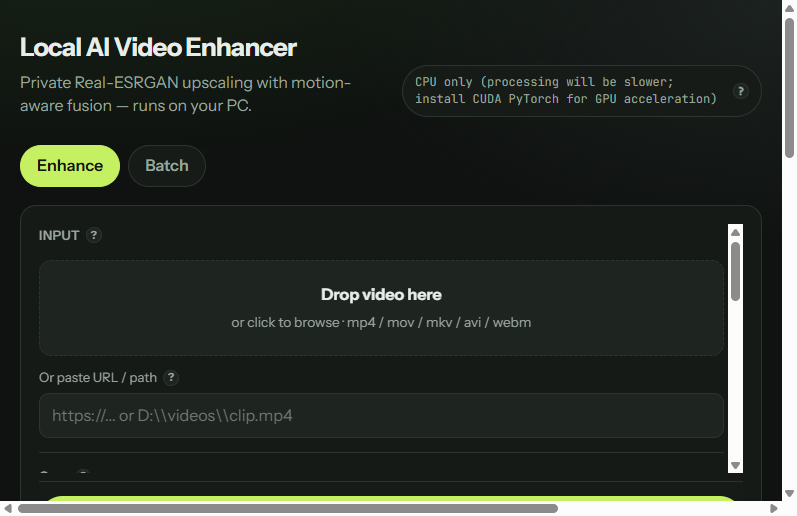
The actual Windows app

Local AI Video Enhancer
App UI: profiles, resolution targets, fusion modes

How we compare

Same price — fuller workflow

Many budget upscalers stop at scale-and-export. We’re also $1+ once — with auto analysis, motion fusion, batch, compare preview, and content presets built in.

“Cleaner-looking video, smoother frame-to-frame results, and private local processing.” A lightweight one-time purchase for a simpler Windows workflow — not professional broadcast restoration software.

What you get at this price

1. Motion-aware blending

Frame-by-frame upscale often flickers on camera motion. Optional 5 fusion modes (Off → Adaptive) use optical flow — can reduce shimmer on pans; fast motion and cuts may still ghost.

2. Four profiles

General (phone/film), Anime (cartoons), UltraSharp (AI art/screenshots), Fast (lower VRAM) — not just one default model path.

3. Target resolution

Pick 720p / 1080p / 2K / 4K — not just 2×, 3×, or 4×. Better for “I need YouTube 1080p” without doing the math.

4. Content presets

Film, anime, phone, screen, game — auto-tune denoise, faithfulness, and polish without manual tweaking.

5. Batch queue (Pro)

Queue multiple clips with one settings profile — not one file at a time.

6. Before/after compare

Built-in side-by-side preview in the app — no exporting to check quality elsewhere.

7. Extra processing

Denoise, face enhance (GFPGAN), stabilize, color match, source blend, job history, URL or file input.

8. Free preview before you buy

720p · 5 seconds — no key, no watermark. Test on your clip before paying.

Feature comparison

Click the icon on our Yes cells — what it is, why it matters, and how we compare.

Feature Local AI Video Enhancer · $1+ Same-price tools · ~$1+ Premium suites · $50+/yr
Windows GUI appYesYesYes
100% local / privateYesYesOften cloud
Real-ESRGAN AIYesYesProprietary
Auto clip analysisYes—Yes
Motion fusion (optional)5 modes—Yes
AI model profiles4 profilesBasicMany
Output targeting720p–4K2× / 3× / 4×Yes
Content presetsYes—Yes
Batch + resumeYes (Pro)—Yes
Before/after compareYes—Yes
Image enhance (PNG/JPG)Yes——
Artifact / text guardYes—Varies
Free preview (no key)720p · 5sPay firstTrial / sub
One-time price$1+~$1+$50–300/yr

FAQ

How much improvement should I expect?
Faces first: a talking-head clip with General + Face restore + Faithful usually looks clearly neater (smoother skin, cleaner eyes). Clean 720p phone video → 1080p is a visible upgrade. Heavily compressed social clips: blocks soften but missing detail won’t appear from nowhere. Leave UltraSharp off on faces — that combo looks plastic. Use the free 5-second preview on your own clip before buying.
How is this different from other ~$1+ upscalers?
Same rough price tier. We add motion fusion, 4 profiles, 1080p–4K targeting, batch + resume, auto analysis, before/after compare, and a free 5s preview — basic tools usually stop at single-file 2×/4× export.
Which model should I use?
General for camera and talking-head footage (keep Face restore on, Faithful look). Anime for cartoons. UltraSharp for AI art and screenshots — not faces. Fast when VRAM is tight or you need speed. Content presets adjust denoise and faithfulness automatically.
What is motion fusion?
Optional motion-aware blending warps the previous enhanced frame with optical flow and blends it with the current one — it can reduce frame-to-frame shimmer on pans. Fast motion, occlusions, subtitles, and scene cuts may still produce ghosting or softness. Start with Balanced; use Light or Off when artifacts appear. Scene-cut detection is on by default.
What video formats are supported?
Input: MP4, MOV, MKV, AVI, WebM, M4V. Output: MP4 (H.264 or HEVC). Paste a direct file URL or Windows path, or drag-and-drop in the app.
How long does processing take?
Depends on resolution, length, GPU, and fusion mode. NVIDIA + CUDA is strongly recommended. CPU works for the 5-second free preview but 4K full clips can take hours per minute. Use the Fast model for speed.
Do I need internet after I buy?
Internet for first enhance (~400 MB model download inside the app) and occasional license check. Processing is offline after that. 7-day offline grace if license can’t re-verify.
Windows SmartScreen warning?
Normal for a new indie app. Click More info → Run anyway. Full refund within 14 days if you’re uncomfortable — reply to your Gumroad receipt.
Transfer license to a new PC?
One key = one PC. Reply to your Gumroad receipt with your old and new machine details — we’ll help transfer (deactivate old seat).
Is this a pro restoration suite?
No — different tier. Professional tools target broadcast archival work (faces, difficult footage, HDR, production pipelines) and cost much more — often $50–300/year. This app is an affordable, beginner-friendly local workflow built on Real-ESRGAN for phone clips, YouTube B-roll, anime, and personal footage.
Are updates included?
Yes — 1.x updates are included with your purchase. Major future versions with substantial new features may be a paid upgrade; we’ll say so clearly if that happens.
How do I install it?
Download the zip from Gumroad, extract the folder, and double-click LocalAIVideoEnhancer.exe. Paste your license key from the receipt email. No Python or command line required.
What does “faithfulness / source blend” do?
Mixes a percentage of the original frame back into the AI output. Higher = more natural texture, less “plastic AI” look. Lower = sharper but can look artificial. Presets set a good default; tweak in Advanced.
Refund policy?
14 days, full refund — reply to your Gumroad receipt. No quiz.
GPU required?
Strongly recommended for 1080p–4K. CPU works for the free 5-second preview and short clips; full 4K can take hours per minute without a GPU.
Activate license
Key in your Gumroad receipt email → paste in app once → one PC. Reply to receipt to transfer.

Cleaner video on your PC — $1+ once

Private local workflow · free 5s preview · portable Windows app · 14-day refund

I want this · $1+